Placing Your First Trade
Placing Your First Trade
In this article we will be covering all the basics on:
Placing a Trade
Closing a Trade
Taking Partials
Moving Your Trade To Breakeven
Step 1: Place A Trade
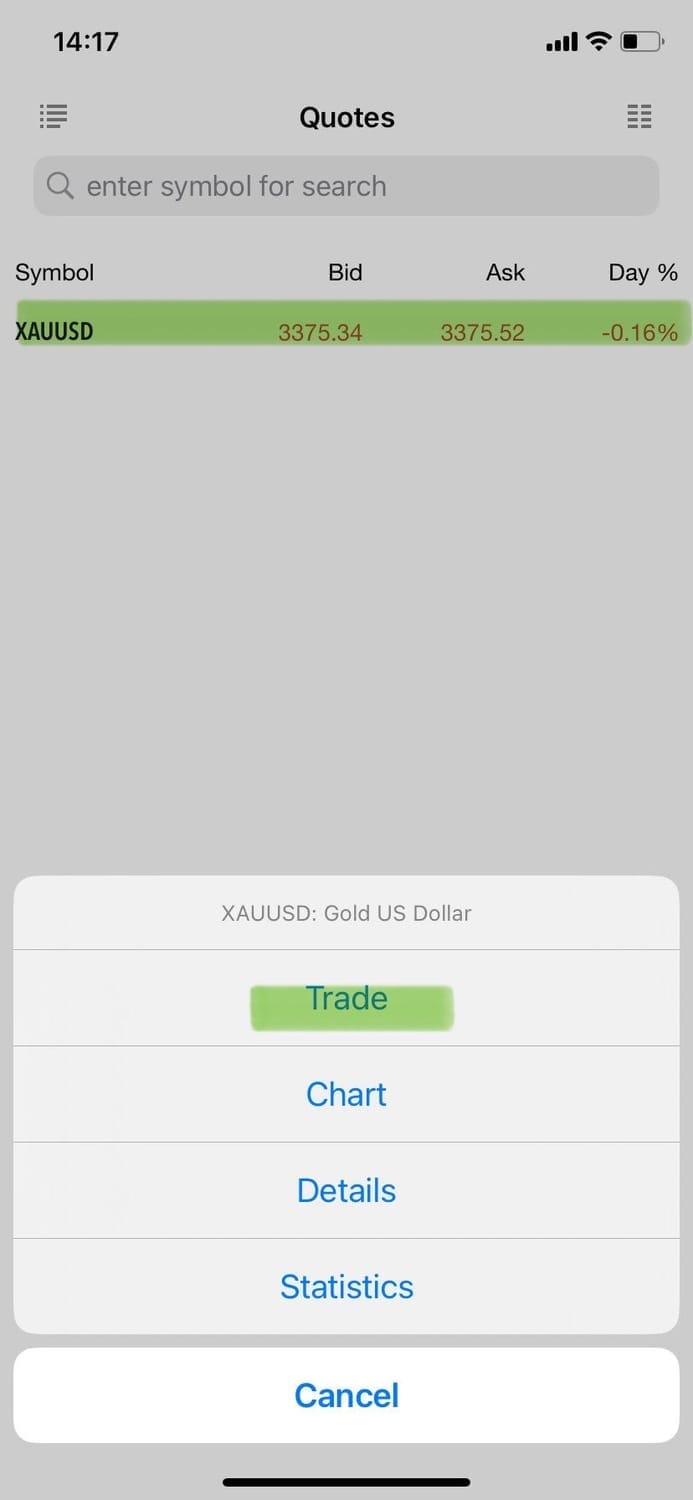
To Open a trade:
Go to Quotes.
Tap the asset you want to trade (Most of the time this will be Gold also known as XAU/USD)
Tap Trade
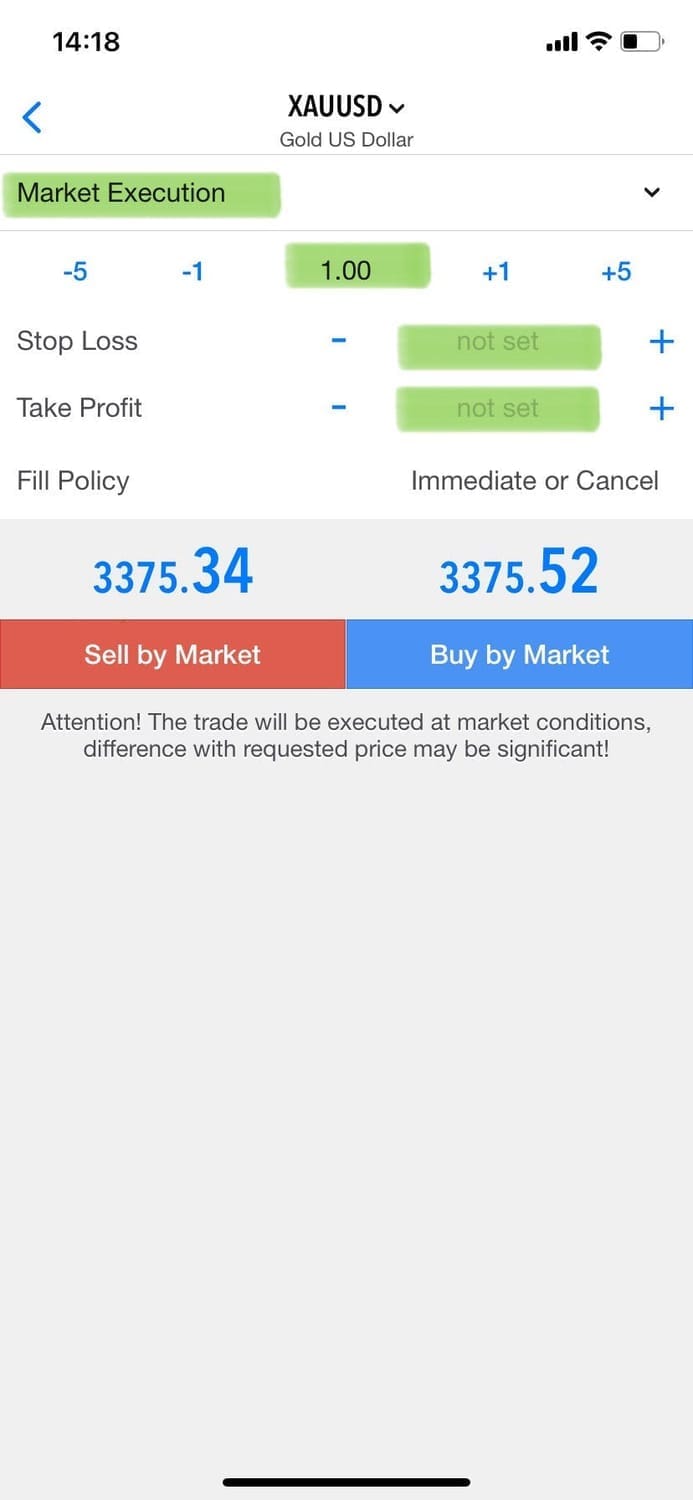
Volume: Choose your trade size
Stop Loss/Take Profit: You'll input this information when you receive it via the signals. This will be explained in the How to use the signals article.
Type: Choose your setting such as Buy limit, Sell limit or Market Execution. (Explained Below)
Tap Buy or Sell
Your trade will now appear in the trade tab.
What is a Buy and Sell Limit?
A Buy and Sell limit allows you to place a trade in the market at a specific price automatically when the market reaches this level. Here's an example.
Gold is currently trading at $3510. You want to place a buy when it reaches $3505, so you set this as a buy limit.
If the market reaches that level your trade will automatically enter the market. Buy limits allow you to go about your day and play out the trade automatically.
What is Market Execution?
A market execution trade means you'll be entering the trade straight away. The majority of the signals will be done in this way.
This is because our traders our reacting to the current price in real time. They are patiently waiting for the area to take a trade and when they do you'll receive the alert.
P.S I advise against this but for those of you who want to test taking a trade. You can run a test buy entering 0.01 in the volume tab (This is the smallest trade you can take in the market) and press buy or sell.
But read the next step first so you know how to go and close this position straight away. (Taking a test trade isn't necessary though!!)
Step 2: Manage Or Close A Trade
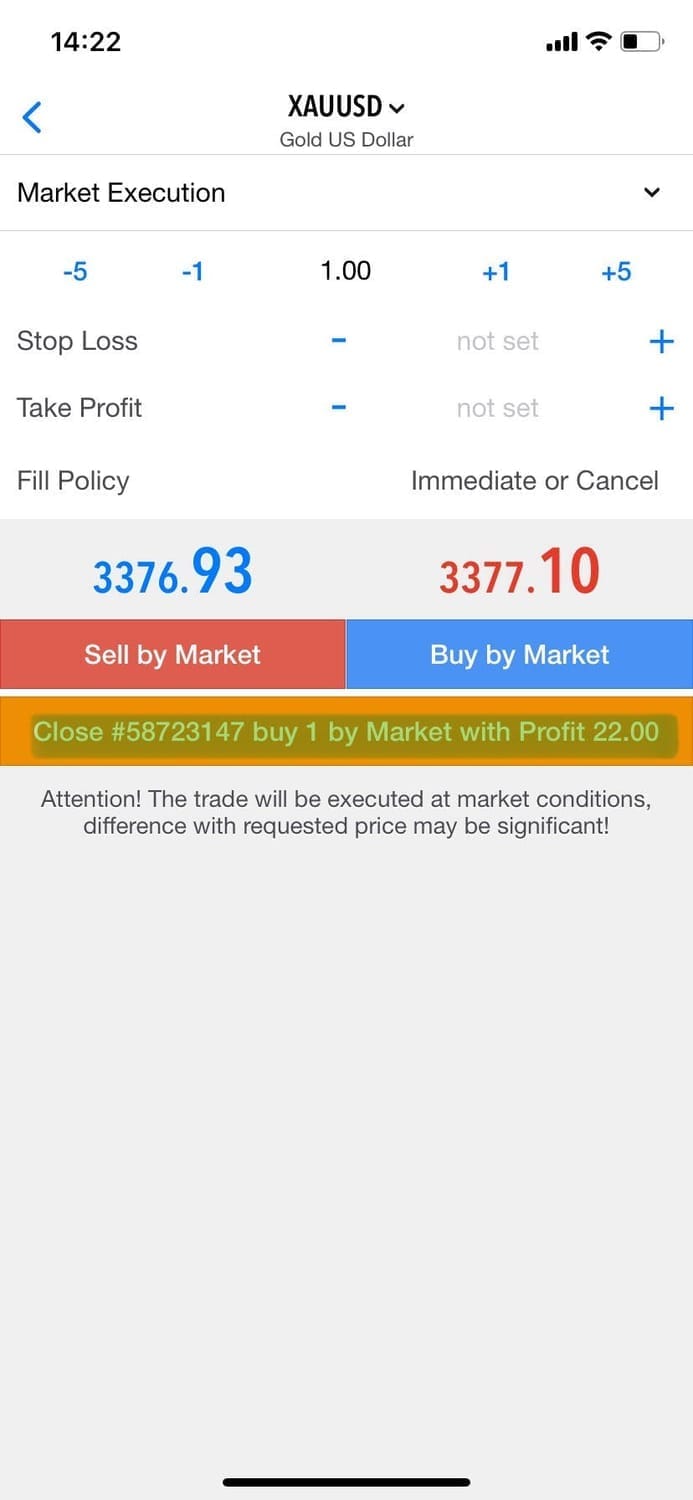
Go to the Trade Tab (Bottom Center)
Tap the trade you want to close.
Tap Close Position.
Tap the Yellow Close button to finish.
This will end your trade and move the result to the History Tab. The history tab will give you a log of all closed trades.
Step 3: Take Partials At Each Take Profit
The majority of the trade alerts that you receive will have multiple take profits.
This basically means that the trader is targeting a number of different prices in the market, and wants to take profit along the way.
When you hit a TP it's exciting as you can close a portion of your trade and bank real money.
Let me explain here with an easy example.
You receive an alert to buy gold at $3500. When the gold price hits $3505 this would be target 1. You would want to close a little bit of your trade to bank the profits, This is called taking partials.
When it hits $3510 you'll hit target 2 and want to close a bit more.
When it hits $3515 you'll hit target 3 and close the full position.
If you left the full position open to target 3 you'd make the most money, but this isn't a smart way to trade. The markets are extremely volatile so we want to extract money and bank the profits along the way.
Whenever the trade is open, it's not realized profits! We will talk about this more in the upcoming articles.
To Take Partials on a trade you need to:
Tap the trade you want to close.
Tap Close Position
In the volume tab type how much volume you want to close.
Tap the Yellow Close button to finish.
This will end a part of your trade and move the result to the History Tab. The history tab will give you a log of all closed trades including partials.
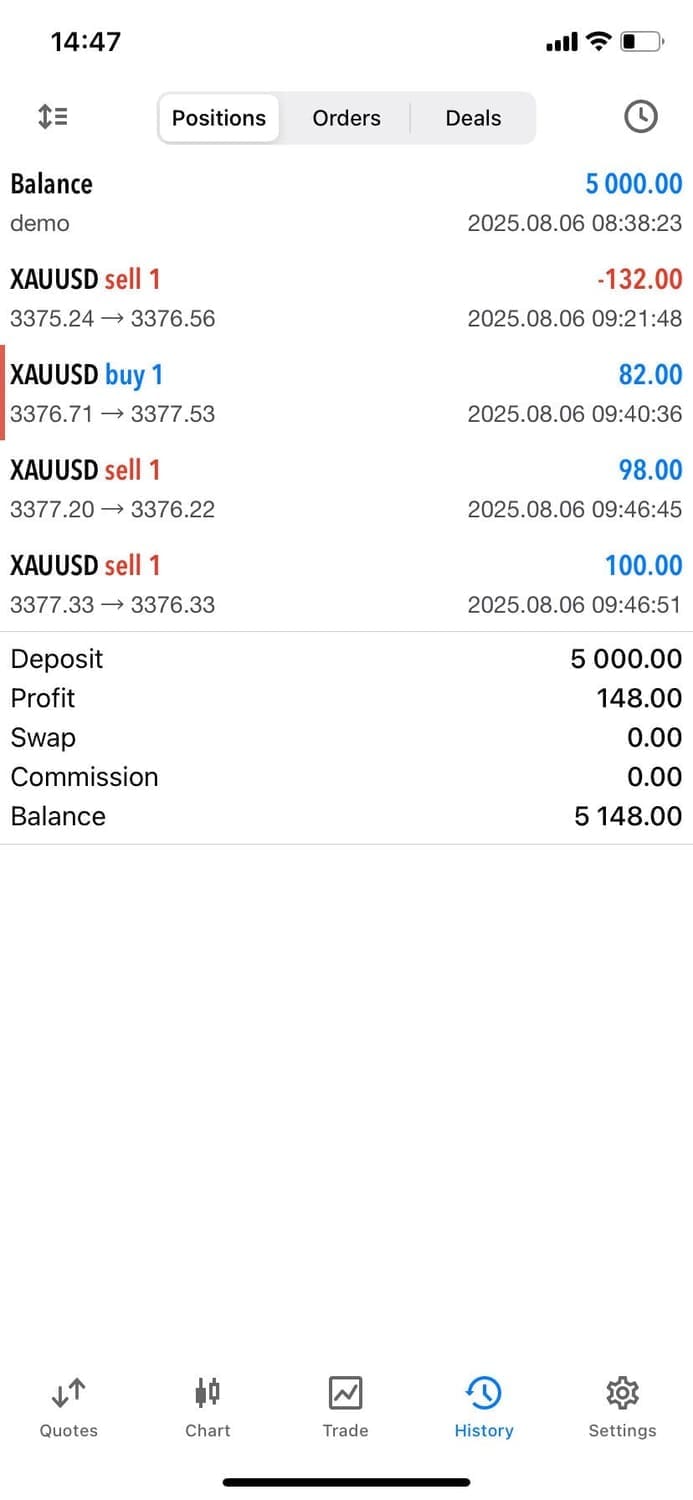
Let me explain here with an easy example.
You have a trade open with 0.1 lots.
You want to close 50% of the trade because you have hit TP1 (Take Profit 1)
You simply enter 0.05 in the volume tab and tap close.
This will close 50% of the trade and bank the profits for you.
Step 4: Place Your Trade At Breakeven
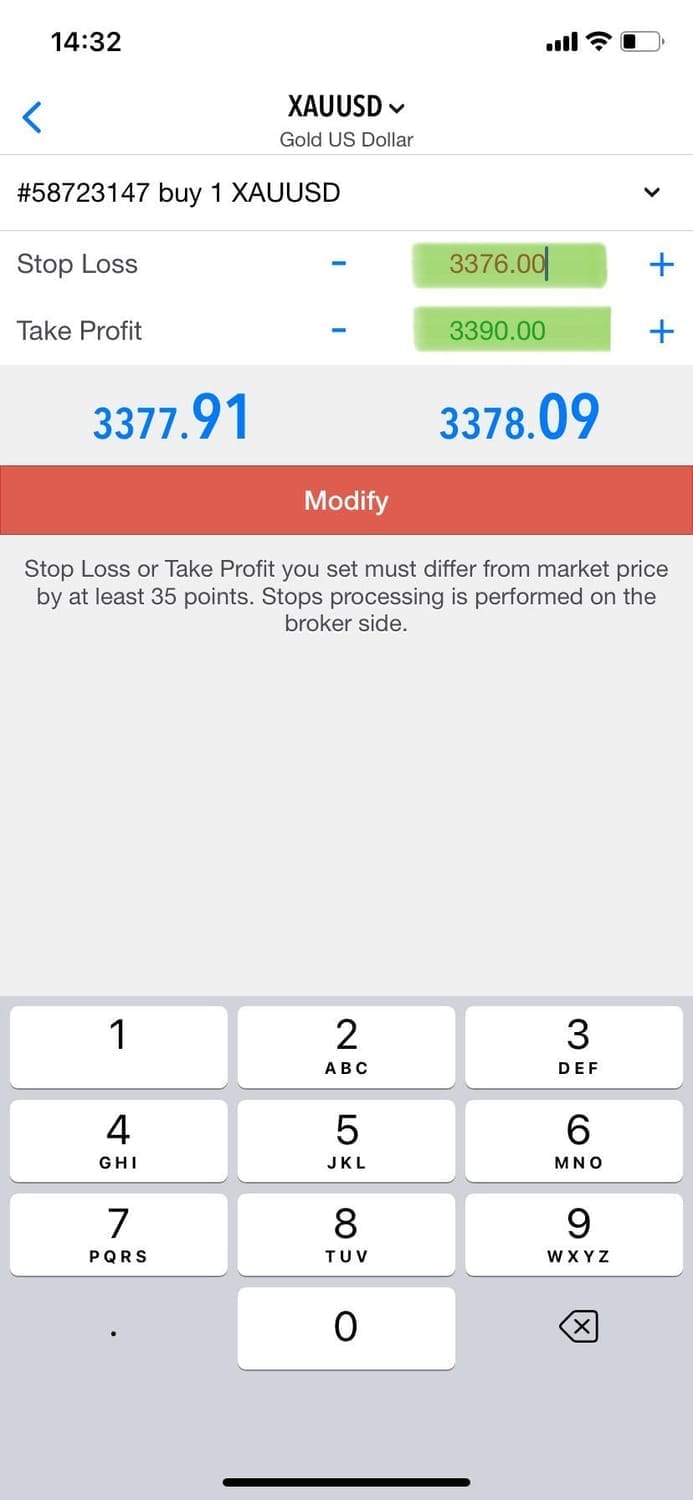
Breakeven means you move your Stop Loss to the entry price of your trade.
This way, if the market turns against you, you won’t lose money—you’ll exit at exactly the price where you opened the trade.
Follow these steps:
In the MT5 App go the the Trade Tab
Find the trade you want to adjust
Tap and Hold the trade, then tap Modify Position (Or modify Trade)
In the Stop Loss (SL) field, enter your entry price (the same price you opened the trade at)
Tap Modify or Done to save the changes.
Now your stop loss is set to the same level as your entry, so if price hits it, you will exit the trade with no loss.
Our alerts will say 'go risk free' or 'Stops to BE' often. This means they want to protect your capital and your trade from losing.
Step 5: Trade Size And Volume Input
How much should you risk per trade?
For our trades we suggest using 0.01 lot size for every $50 in your account.
If you have $250 in your account then a lot size of 0.05
If you have $1,000 in your account then a lot size of 0.2
And so on.
If you have never placed a trade before and this is completely new to you, start by placing a couple of 0.01 trades when the alerts comes through to get the hang of it.
0.01 is the smallest trade you can place which is good practice if this is your first time.
Please note you can't close partials on a trade of 0.01 as it's the minimum trade size.
Finished this post? Check out How to Use The Signals Article Click below
Created with © systeme.io
Privacy policy | Terms of use | Cookies